You’ve set up your WordPress site, you’re publishing content regularly, and Google is still sending you almost nothing. No traffic spikes, no meaningful rankings, and no clear answer about what’s broken. This is one of the most common frustrations among bloggers and small business owners who are doing the work but missing a few foundational pieces that make everything else click.
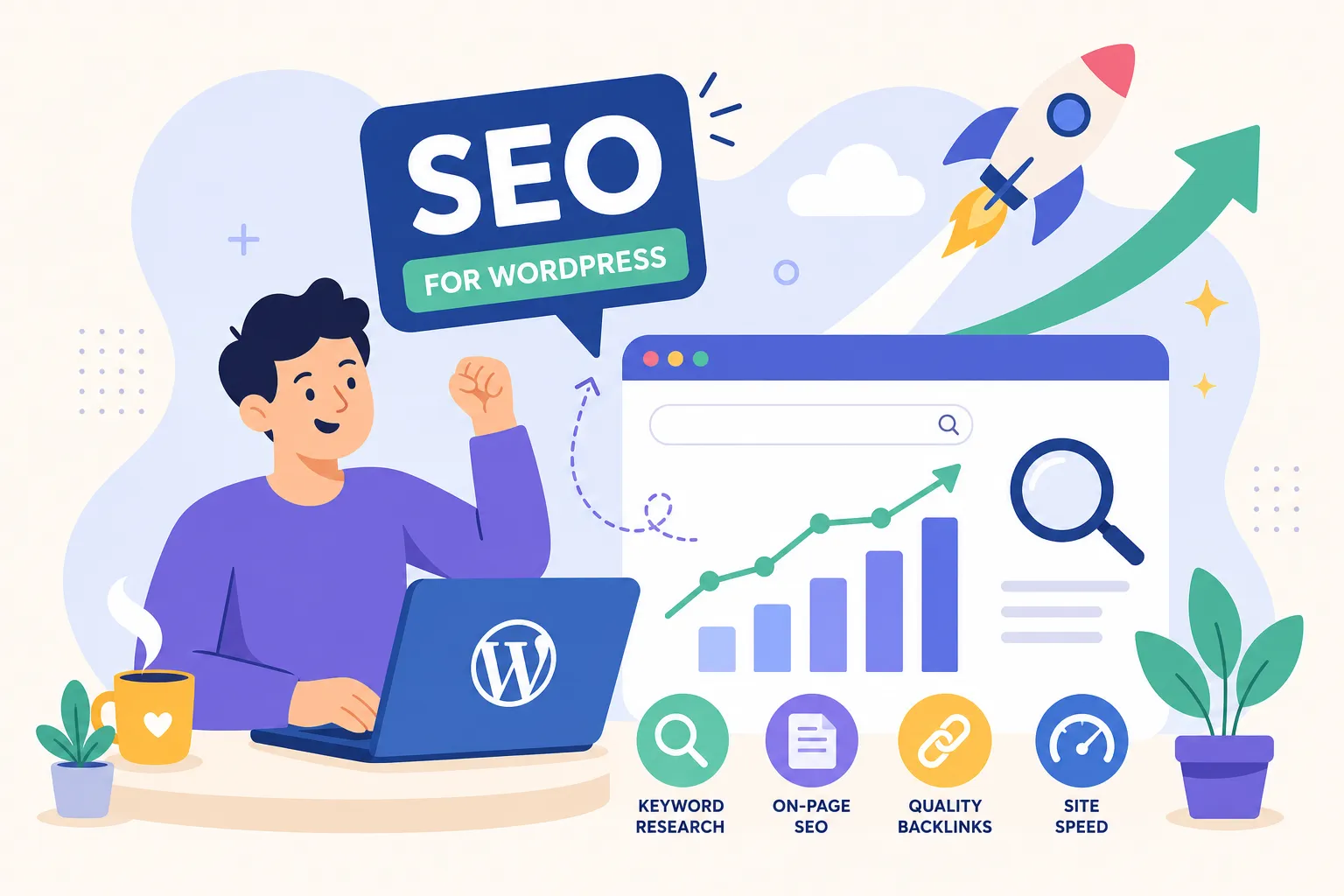
The good news is that most WordPress SEO problems come down to the same handful of fixable issues. If you’re looking for WordPress SEO tips that actually move the needle, you’re in the right place. Here at the WordPress SEO Tips, Plugins & Optimization Guides, we’ve spent years testing what works on real WordPress sites, and this guide reflects what consistently produces results. You don’t need to implement 50 changes at once. Work through six specific areas in the right order: plugin setup, keyword research, on-page basics, speed and images, technical settings, and tracking. Each area builds on the last, so completing them in sequence gets you to measurable traffic gains faster than jumping around.
1. WordPress SEO Tips: Plugin Setup and Permalinks
Choosing the right SEO plugin (and sticking to one)
Three SEO plugins dominate WordPress in 2026: Rank Math for power users who want advanced schema, built-in rank tracking, and modular controls; Yoast SEO for beginners who want a guided editorial workflow with real-time content analysis; and AIOSEO for small business owners who want a balanced, all-in-one setup with a simple onboarding wizard. All three are solid choices. If you want a quick, third-party roundup of the current best WordPress SEO plugins, that overview can help orient you before you choose. The one you pick matters far less than what comes next.
Install only one SEO plugin. Running two simultaneously creates duplicate meta tags, competing XML sitemaps, and schema conflicts that silently damage your indexing. No matter which plugin you choose, complete three baseline configurations right away: enable the XML sitemap, set your global title and meta description templates for posts, pages, and archives, and turn on basic schema for your primary content type. For bloggers who prefer a lightweight automated option, consider a streamlined alternative like Slim SEO, A Fast & Automated SEO Plugin For WordPress and compare its trade-offs with full-featured suites.
Why your permalink structure matters more than you think
WordPress defaults to a URL structure like ?p=123, which is meaningless to both search engines and users. Go to Settings, then Permalinks, and switch to Post name (/your-post-title/) immediately after installation, before you publish anything. This creates short, descriptive, keyword-relevant URLs that Google can read and users can trust. For a practical walk-through on permalink best practices, Yoast’s guidance on URLs and permalinks is a useful reference.
If your site is already live with a different structure, a permalink change requires 301 redirects for every existing URL. Without those redirects, you’ll lose any authority those pages have accumulated. Plan the migration carefully or do it before your site has significant traffic. When writing URLs, strip stop words like “a,” “the,” and “of” where the URL still makes sense. Shorter and cleaner is always better.
2. Find the Right Keywords Before You Start Writing
Why publishing without keyword research wastes your effort
Most WordPress beginners write first and optimize later. That backward approach means you’re either targeting phrases nobody searches for or going after terms so competitive that a newer site has no realistic shot at ranking. Keyword research done upfront tells you exactly what your audience types into Google, what their intent is, and how hard it will be to rank for a specific term. It shapes your title, your H1, your headings, and your content structure before you begin outlining.
The goal isn’t to find popular keywords. It’s to find keywords where the search volume is real, the intent matches what you can deliver, and the competition is genuinely winnable for your current domain authority. Distinguishing those three factors is exactly what solid keyword research reveals, and skipping this step is the single most common reason WordPress content fails to rank.
How tools like KWFinder fit into a WordPress SEO workflow
We review a lot of SEO tools at AISEO Round Table, and for bloggers running WordPress on a tight budget, Mangools’ KWFinder is one we keep recommending. It surfaces low-competition keywords with clear difficulty scores, shows monthly search volume, and lets you see exactly what’s already ranking on page one before you start writing. Learn more about KWFinder’s long-tail keyword research features to see how it fits into your workflow.
The practical workflow looks like this: run your topic through KWFinder and find a primary keyword with manageable difficulty and real volume. Then check the SERP using SERPChecker to see what content is already winning and why. Write your post around that specific keyword and intent. This process prevents you from wasting time on content that was unlikely to rank from the start, and it gives your WordPress posts a real competitive foundation before they go live.
3. On-Page WordPress SEO Tips for Post Titles and Headings
Getting your title tag, H1, and headings right
Your title tag is the single highest-impact on-page element. Place the primary keyword near the front, keep the title unique across every page on your site, and write it to earn the click as much as to signal relevance to Google. A good title does both jobs at once, write it for the person scanning search results, not for the algorithm.
Every post needs exactly one H1, which in WordPress is typically the post title. Use H2s to organize your main sections and H3s for sub-points within those sections. This hierarchy helps both readers and crawlers understand what the page covers and how the content is organized. Skipping heading levels or using multiple H1s creates structural confusion that undermines your optimization efforts.
Meta descriptions, internal links, and content that satisfies intent
Meta descriptions are a click-through lever, not a direct ranking factor. Write them to answer the searcher’s implicit question: why should I click this result instead of the others on the page? Keep them around 150 to 160 characters with a specific value statement and, where natural, a call to action.
Internal linking is one of the most underused tactics in any WordPress SEO checklist. Link from newer posts to your pillar content using descriptive anchor text that tells both users and Google what the destination page is about. Generic anchor text like “click here” or “read more” throws away ranking signal. When you name the link clearly, you reinforce topical relevance across your entire site. For curated lists of SEO Plugins for WordPress & Websites, use those pages as natural hub destinations for related posts.
Don’t pad your content to hit an arbitrary word count. Add new sections, comparisons, or answers to related questions only when they genuinely help the reader. Useful depth outranks filler length every time, and Google’s systems have gotten very good at telling the difference.
4. Speed, Images, and Core Web Vitals Fixes That Google Notices
The hosting and caching baseline
Fast hosting is the foundation that no plugin can fully compensate for. If your server’s time to first byte is consistently above 600ms, caching plugins won’t fix the problem, you need better infrastructure. Look for hosting with strong TTFB performance in independent benchmarks, not just “WordPress optimized” marketing language on the sales page.
Enable full-page caching for anonymous visitors (users who are not logged in and not on cart or checkout pages). Caching plugins like WP Rocket, FlyingPress, and LiteSpeed Cache each handle this well; LiteSpeed Cache is especially strong if your host runs LiteSpeed servers. Pair caching with a CDN to serve static assets from servers closer to your visitors, which reduces latency and improves LCP scores for readers across different regions.
Image optimization: the easiest quick win on this list
Serving images in WebP format is one of the fastest ways to improve your Largest Contentful Paint scores without touching code. Convert images to WebP on upload using a plugin like ShortPixel, Imagify, or EWWW Image Optimizer. Always set explicit width and height attributes on your image tags to prevent layout shifts that hurt your Cumulative Layout Shift score.
One common mistake: don’t lazy-load your main above-the-fold image. That image is almost certainly your LCP element, and lazy-loading it forces the browser to delay loading the most important visual on the page. Lazy-load everything below the fold, and use the fetchpriority="high" attribute on your hero image to signal the browser to prioritize it.
For a practical, WordPress-focused walkthrough on diagnosing and improving Core Web Vitals, refer to the Core Web Vitals WordPress guide which explains the metrics and actionable fixes hosting and theme teams should prioritize.
5. Technical WordPress Settings Most Beginners Overlook
XML sitemaps, robots.txt, and canonical tags
Your SEO plugin generates an XML sitemap automatically. Once it does, submit it to Google Search Console. Include only indexable, canonical URLs that return a 200 status: exclude tag pages, low-value archives, author pages, and any page marked noindex. Sitemaps and your robots.txt file must always agree. Never block a URL in robots.txt that you’ve listed in the sitemap; that contradiction confuses crawlers and can prevent indexing.
Every indexable page on your WordPress site should have a canonical tag pointing to itself, using the HTTPS version and your preferred URL format (with or without a trailing slash, consistently across the entire site). This prevents duplicate content issues from URL parameter variations, pagination, and the multiple ways WordPress can generate the same content at different URLs.
Adding schema markup for rich results
JSON-LD is the schema format Google recommends, and your SEO plugin handles it without requiring you to write a single line of code. For a WordPress blog, the minimum useful schema types are Article or BlogPosting for posts, BreadcrumbList for site navigation, and FAQPage for posts that include a genuine frequently asked questions section. Set these in your plugin settings and they apply automatically to every new post.
Test any schema you implement using Google’s Rich Results Test before publishing the page. Structured data that doesn’t match your visible page content gets ignored or flagged. Only mark up information that’s actually present on the page, and verify that the test tool confirms the schema is detected correctly.
6. Tracking SEO Progress So You Know What’s Actually Working
Setting up Google Search Console and GA4
Connect your WordPress site to Google Search Console immediately after launch, even before you have meaningful traffic. GSC shows you clicks, impressions, average position, and click-through rate for every query and page your site appears for. Together, those four metrics tell you whether you’re facing a ranking problem, a CTR problem, or a content quality problem. Without this data, you’re optimizing blind.
Link GA4 to your site and segment organic traffic separately from all other sources. Check landing page performance in GA4 to see whether search visitors are engaging with your content or leaving immediately after arrival. Engagement signals feed back into rankings over time, so a page that ranks but fails to hold attention will eventually lose ground to content that does.
Using a rank tracker to spot movement early
GSC average position can be noisy and slow to reflect real changes after you make updates. A dedicated rank tracker gives you daily or weekly position data for your target keywords so you can catch declines early, before they show up as visible traffic drops. Mangools includes rank tracking as part of its suite, which makes it a practical all-in-one option for WordPress bloggers who already use it for keyword research.
Check your tracked rankings after publishing new content, after making on-page edits, and after any significant plugin or theme changes. Correlating site changes with ranking movement is how you learn what works on your specific site. General SEO advice points you in the right direction; your own data tells you what’s actually happening.
Where to Go From Here
The priority order matters. Start with plugin setup and permalinks to get your technical foundation right. Do keyword research before writing to make sure you’re targeting winnable terms. Nail the on-page basics for every post. Fix speed and image performance to pass Core Web Vitals. Configure your technical settings for clean indexing. Then track everything so you can see what’s moving and what needs more work.
This WordPress SEO guide is designed to be worked through in sequence rather than sampled out of order. Each area builds on the last, and skipping ahead typically means discovering later that a foundational issue is undermining everything else you’ve done. You don’t need outside help to get this right, you need the right order and the right tools.
If you want deeper dives into any of these tools or strategies, AISEO Round Table publishes step-by-step reviews and guides built specifically for bloggers and small business owners doing their own SEO. Follow these WordPress SEO tips and start seeing measurable traffic gains, but begin with one concrete action right now: open Google Search Console, check your site’s current indexing status, and see how many of your pages are actually being crawled and indexed. That single check will tell you more about your site’s health than almost anything else you can do in the next five minutes.