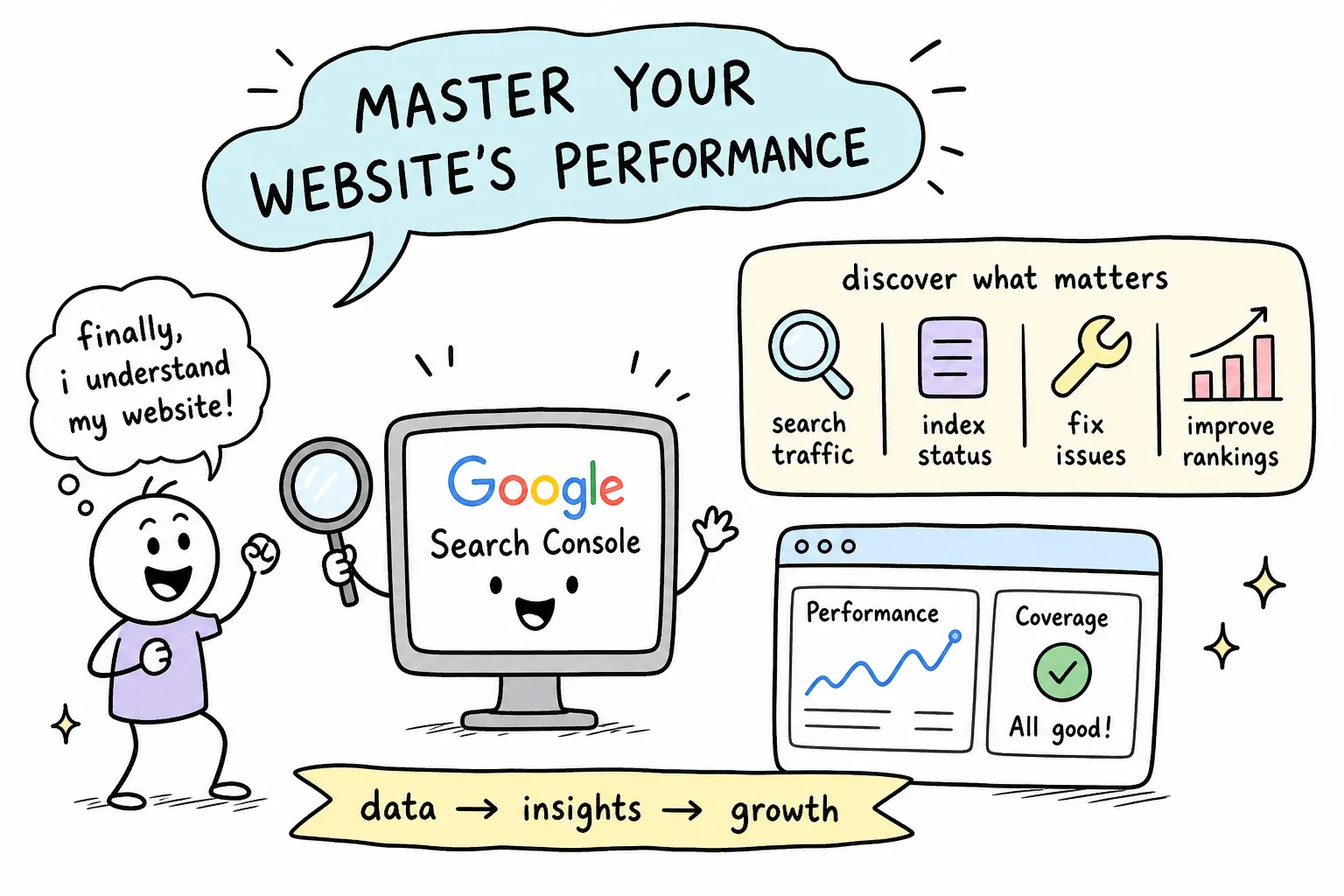
Most beginners install Google Search Console, wait for data to show up, and then stare at the dashboard wondering what any of it actually means. Clicks, impressions, coverage errors, canonical conflicts, the interface surfaces a lot of information without telling you what to do with it. That disconnect between data and action is one of the most common reasons rankings stall even when GSC is technically set up. This Google Search Console tutorial walks you through every step: what the dashboard metrics mean, which reports to check first, and exactly what to do next.
This walkthrough is the guide the AISEO Round Table team wished had existed when we were first building sites from scratch. By the time you finish reading, you’ll know how to verify a property, interpret the reports that matter most, submit a sitemap, request indexing for individual pages, and fix the errors that quietly tank rankings. We’ll tackle setup first, then interpretation, then action.
1. Google Search Console tutorial: How to add and verify your site
The first decision you make in GSC shapes everything that follows: choosing between a URL prefix property and a Domain property. A URL prefix property covers one specific version of your site, such as https://example.com. A Domain property covers all subdomains and protocol variants under a single root domain and is what Google recommends for long-term use. If you’re just getting started and want to move quickly, URL prefix can be a simpler option to verify while you’re learning the tool, though plan to migrate to a Domain property as your site grows.
To add your property, sign in to Search Console, click “Add property,” enter your site’s URL, and choose your verification method. Google supports five verification options for URL prefix properties. For a concise walkthrough on the verification options and how to keep your verification asset in place, see the guide on how to verify ownership in Google Search Console.
- HTML meta tag: Copy the provided tag and paste it into the
section of your homepage. If you run WordPress, an SEO plugin like Yoast or RankMath handles this without touching any code. - HTML file upload: Download the verification file from GSC and drop it into your site’s root directory via FTP or your hosting file manager.
- Google Tag Manager: If GTM is already deployed on your site, select this option and Google will verify ownership through your container.
- Google Analytics: A fast option when GA is already installed and you have appropriate access via the same Google account.
- DNS record: Add a TXT record to your domain registrar. This is the required method for Domain properties and the approach Google recommends for comprehensive long-term coverage.
One rule applies regardless of which method you choose: the verification asset must stay in place permanently. Remove the meta tag, delete the HTML file, or let the DNS record lapse, and GSC will revoke your ownership and stop collecting data for your property.
2. Reading the Performance report like a pro
The Performance report is where most beginners spend the most time, and where the most misreadings happen. The four core metrics, clicks, impressions, CTR, and average position, each tell a different part of the same story, and conflating them leads to bad decisions.
Clicks are direct traffic from Google Search. Impressions count how often your page appeared in results, whether someone scrolled past it or not. CTR is clicks divided by impressions: a low CTR paired with high impressions means your result is visible but your title or meta description isn’t compelling enough to earn the click.
Average position is the trickiest metric because it’s a mean across all ranking instances for a given page or query, not a single precise rank. A page ranking at position 3 for one query and position 28 for ten other queries will show an average position that looks fine but masks a lot of underperformance.
The most actionable way to use the Performance report is to filter it aggressively. Switch between the “Queries” and “Pages” views to isolate which content is underperforming versus which keywords are driving real growth. Two patterns are worth prioritizing immediately.
High impressions, low CTR
Pages with high impressions but low CTR are worth addressing first. Google is already showing your content; the problem is the snippet. Rewrite the meta title to better match the intent behind the query and sharpen the description to make the benefit of clicking obvious.
Near-page-one rankings (positions 11, 40)
Pages sitting between positions 11 and 40 are strong candidates for content updates or internal linking pushes. They’re close to page one and need a nudge, not a rebuild. One important caveat: GSC only shows queries you already rank for. It won’t surface untapped keyword opportunities or tell you how competitive a query is to pursue. That gap gets addressed in the final section.
3. Making sense of the Page Indexing report
The Page Indexing report (previously called the Coverage report) shows whether Google can find and index your pages. The status categories are: Valid, Valid with warnings, Error, and Excluded. Many beginners panic when they see URLs in the “Excluded” column, but not every exclusion is a problem. Login pages, admin URLs, duplicate parameter variations, and paginated pages are often intentionally excluded and don’t need fixing.
The excluded statuses worth investigating are the ones that affect pages you actually want Google to index. “Crawled, currently not indexed” means Google fetched the page but decided it wasn’t valuable enough to include in the index. This typically signals thin content, weak internal linking, or a duplicate content issue. “Discovered, currently not indexed” means Google knows the URL exists from your sitemap or internal links but hasn’t crawled it yet, often due to crawl scheduling priorities or lower crawl priority assigned to that section of your site. The distinction matters because the fixes are different: “Discovered” pages usually need better internal linking and a sitemap check, while “Crawled” pages usually need stronger content or a canonical tag review.
Understanding what’s not indexed is just as important as what is. A page that’s been crawled but not indexed is telling you something about perceived quality. A page that’s never been crawled is telling you something about crawl access or priority. Reading those signals correctly points you toward the right fix. For common remediation steps specific to “Discovered, currently not indexed” cases, helpful practical advice is available on how to fix “Discovered, currently not indexed” in Google Search Console.
4. Submitting your sitemap and using URL Inspection
Submitting a sitemap tells Google where to find all your important URLs in one place. In Search Console, navigate to the Sitemaps section in the left sidebar, type your sitemap path (usually /sitemap.xml or /sitemap_index.xml), and click Submit. Google doesn’t download the file; it reads it directly from your server, so the sitemap needs to stay publicly accessible at that path. If you need a step-by-step walkthrough for sitemap submission, see this guide on how to submit your sitemap to Google Search Console.
After submission, check the Sitemaps report for the fetch status. If a row shows a failure, click through to the error details and resolve the issue before moving on. A few best practices are worth following from the start: keep each sitemap under 50,000 URLs and 50 MB uncompressed, use a sitemap index file if your site has multiple sitemaps, and add a Sitemap: line to your robots.txt as a secondary signal to Googlebot. You don’t need to resubmit constantly, routine content updates don’t require a resubmission. Only significant structural changes or large batches of new URLs justify it.
For individual pages, the URL Inspection tool is your diagnostic workhorse. Paste any URL into the inspection bar at the top of GSC to see its current index status, the last time Google crawled it, and any detected issues. If you’ve made changes to a page and want to confirm the fix worked before requesting indexing, click “Test live URL” first. That test checks the live version of the page, not Google’s cached copy.
Once the live test returns clean results, click “Request indexing.” Two limits apply here: there’s a daily quota on indexing requests, and submitting the same URL repeatedly won’t speed up the crawl. Indexing can take anywhere from a few days to a few weeks regardless of how many times you submit. For guidance from Google on asking them to re-crawl or recrawl a URL after significant updates, refer to the official documentation on how to ask Google to re-crawl a URL.
5. Fixing the most common indexing errors in GSC
Most indexing errors fall into a small number of repeating categories. The fix is almost always the same sequence: inspect the URL, identify the blocking signal, resolve the root cause, then validate in GSC.
A 5xx server error means Google tried to crawl the page and the server timed out or refused the request. Start by testing the URL in your browser, including incognito mode, to confirm the problem is real and not just a stale report. Check your hosting logs for patterns like recurring downtime or resource limits being hit. Once the page reliably returns a 200 status, use URL Inspection to request revalidation. Don’t request revalidation while the server issue is still active, GSC will just log the error again.
“Blocked by robots.txt” and “noindex” errors both require a clear decision before you fix anything: does this page actually need to be indexed? If the answer is yes, open your robots.txt file and remove or narrow the Disallow rule covering that URL. For noindex errors, check the page source and HTTP response headers for a noindex directive; remove it if the page should be indexed, then confirm crawlability and request indexing via URL Inspection. The order matters: fix the underlying cause first, confirm the fix in a live test, then request validation. Doing it in the wrong order creates confusing results in your reports. For a practical how-to on diagnosing the common “Submitted URL blocked by robots.txt” crawl error, Yoast’s help article walks through the steps to resolve it: Submitted URL blocked by robots.txt.
Redirect errors and canonical conflicts require a slightly different approach. For redirect chains or loops, trace the full redirect path, simplify it to a single direct redirect pointing to the final destination URL, then update any internal links and sitemap entries that still reference the intermediate URLs. For canonical mismatches, open the URL Inspection report and compare the “user-declared canonical” against the “Google-selected canonical.” If they differ, Google is indexing a version of the page you didn’t intend. Correct the canonical tag on the page to point to your preferred version, and if alternate versions are unnecessary, 301 redirect them to the primary URL to eliminate the ambiguity.
6. Going beyond GSC to find the keyword opportunities you’re missing
GSC’s Performance report is powerful for understanding existing rankings, but it has a hard ceiling: it only shows queries your site already appears for. It can’t surface untapped keywords, reveal keyword difficulty, or show you what your competitors are targeting. If you’re using GSC in isolation, you’re working with an incomplete picture of your actual ranking opportunities.
The most practical workflow for closing that gap is to pair GSC with a dedicated keyword research tool. Take any query from your Performance report that sits between positions 10 and 40 and run it through Mangools’ KWFinder. You’ll get keyword difficulty scores, search volume trends, and related long-tail variations that GSC would never surface on its own. In our experience at AISEO Round Table, KWFinder works well for bloggers and small site owners because its difficulty scoring accounts for sites without massive domain authority, which makes it easier to spot queries that are realistically winnable.
The workflow looks like this: export your top impression-driving queries from GSC, filter for those with an average position between 10 and 40, and paste them into KWFinder to assess which ones are worth pursuing. Pages already ranking in that range have proven relevance, the question is just whether the competition is beatable. This two-tool combination turns raw GSC data into a prioritized action list rather than a passive performance log. At AISEO Round Table, this is the exact workflow we cover in our deeper keyword research guides, specifically our Best Keyword Research Strategies to Boost Your SEO, and it’s one of the most consistent wins we see beginners unlock once the GSC basics are solid.
Start with one action today
This Google Search Console tutorial covers everything you need to move from confused observer to confident practitioner: verify your property, monitor the Performance and Page Indexing reports on a weekly basis, keep your sitemap updated, use URL Inspection to diagnose individual page issues, and layer a keyword research tool on top of your GSC data to surface the opportunities the Performance report can’t show you. None of these steps require advanced technical knowledge. They require consistency.
GSC is not a set-it-and-forget-it tool. Checking it weekly turns a passive dashboard into a system that compounds over time. Every error you fix, every underperforming snippet you improve, and every near-page-one URL you push over the line adds up. The site owners who see real ranking gains from GSC are the ones who treat it as a recurring workflow, not a one-time setup task.
Start with just one thing today: add your property, pull up the Page Indexing report and look for “Crawled, currently not indexed” URLs, or inspect one page that’s been sitting at position 15 without movement. How to Use Google Search Console for SEO, AISEO Round Table has deeper guides on each of these topics whenever you’re ready to go further. Once these fundamentals are locked in, the logical next step is building a full keyword research workflow around what your GSC data reveals, and learning how to adapt for new SERP experiences like How to Optimize for Google’s Search Generative Experience, AISEO Round Table, and that’s where the real momentum begins.