You installed Yoast, wrote your first blog post, and noticed the colored dot sitting at the bottom of the editor. Green feels good. Red feels like you failed. But if you’re honest, you’re not entirely sure what Yoast SEO is actually doing for your WordPress site, or whether that dot score has anything to do with how Google ranks your content.
If you’re asking “what does Yoast SEO do for my WordPress site?”, you’re in the right place. That question is one of the most common ones we answer here at AISEO Round Table, so this article gives you a plain-English breakdown: what Yoast SEO does behind the scenes, which features matter most, what real improvements to expect, and exactly which settings to configure first so you’re not leaving SEO value on the table.
By the end, you’ll know which tasks Yoast handles automatically, whether the free version covers your needs, and how to complete the most important setup steps right after installation.
What Yoast SEO actually is (and what it won’t do for you)
Yoast SEO is a WordPress plugin that adds an SEO layer on top of your site. Out of the box, WordPress publishes your content as raw HTML without giving Google much context about what your pages are, who runs the site, or which URLs should be prioritized for crawling. Yoast fills that gap by automatically adding meta tags, structured data, XML sitemaps, and canonical URLs to every page and post you publish.
Think of it this way: WordPress builds the house, and Yoast puts up the street sign, mailbox, and house number so search engines can find it, understand it, and describe it accurately in results. Without a WordPress SEO plugin doing that work, your site is technically accessible to Google but much harder to understand and represent well.
Here’s where expectations need to stay realistic, though. Yoast prepares your content for search engines; it doesn’t push your pages to page one by itself. Google ranks pages based on content quality, topical authority, backlinks, user engagement, and a long list of other signals. Yoast makes sure the technical foundation is solid so those other factors can actually work in your favor. It’s a preparation tool, not a shortcut, and understanding that distinction will save you a lot of frustration.
How Yoast SEO controls what Google shows in search results
The most immediately visible feature for most beginners is the Yoast meta box that appears below the post editor on every post and page. This is where you write a custom SEO title and meta description, and it’s genuinely one of the most practical things Yoast gives you. Your SEO title can be completely different from your post title, which matters because the headline that works for your readers on-page isn’t always the headline that performs best in a search results listing.
The snippet preview inside the meta box shows you an approximation of how your post title and meta description may appear in Google, including how they could be cut off if they run too long. Keep in mind that Google may rewrite titles or descriptions at its discretion, so treat the preview as a useful guide rather than a guarantee. That said, adjusting your copy before publishing, rather than discovering a truncated title after the fact, is still one of the most practical habits you can build. A well-written meta description won’t directly boost your ranking, but it does influence whether someone clicks your result over a competitor’s, and click-through rate matters for sustained visibility. For a deeper look at crafting the right title and description, see our article on why title tags and meta descriptions matter.
The focus keyphrase field and the green/orange/red scoring system sit in the same meta box. When you enter a focus keyphrase, Yoast checks whether it appears in prominent on-page locations, your SEO title, meta description, headings, and other key areas, then grades your optimization with the colored dot. The dot color is a content checklist, not a ranking score Google uses. A green dot means you’ve followed Yoast’s on-page checklist; it doesn’t mean you’ll rank. But the checklist itself reflects solid SEO practices, so following it consistently puts your content in a better position.
XML sitemaps: how Yoast helps search engines find your pages
An XML sitemap is essentially a list of all your important URLs that you submit to Google so it knows what exists on your site and what to crawl. Without one, Google discovers your pages by following links, which works but isn’t the most reliable method, especially for newer sites with fewer inbound links. Yoast generates your sitemap automatically and updates it every time you publish or update a post, so you never have to maintain it manually. For the official details on the sitemap format and behavior, consult Yoast’s XML sitemaps documentation.
How Yoast builds your sitemap
Yoast doesn’t create a single flat sitemap file. It creates a sitemap index that points to separate sitemaps for each content type: one for posts, one for pages, one for categories, and so on. This structure makes it easier for Google to crawl large sites efficiently because it can prioritize the content types it cares about most. Each individual sitemap holds up to 1,000 URLs, and Yoast splits larger sites into multiple files automatically.
You can control exactly which content types appear in your sitemap through Yoast’s Search Appearance settings. Tag archive pages, author pages, and other low-value content can be excluded so Google spends its crawl budget on pages that actually matter. Any page you mark as “noindex” in Yoast is automatically removed from the sitemap, which keeps your sitemap clean without any extra steps on your part.
Submitting your sitemap to Google
Yoast generates the sitemap, but submitting it to Google Search Console is a separate step you need to complete manually. Your sitemap URL typically looks like yourdomain.com/sitemap_index.xml, and adding it to Search Console after setup is one of the first things you should do to accelerate indexing.
Yoast readability analysis and what it actually checks
The Yoast readability tab runs a separate set of checks from the SEO analysis, and it confuses a lot of beginners because it feels like a grammar tool rather than an SEO feature. The checks it runs include sentence length, paragraph length, passive voice percentage, transition word usage, subheading distribution, word complexity, and Flesch reading ease score. Each check highlights specific patterns that make content harder to skim or absorb. (Yoast’s documentation specifies the exact thresholds for each check, so it’s worth reviewing those details in the plugin itself, see Yoast’s readability analysis guide.)
The Flesch reading ease score deserves a quick explanation. It’s calculated based on average sentence length and average syllables per word, producing a score between 0 and 100. Higher scores mean easier reading. Yoast considers a score of 60 or above acceptable for most web content. It’s not a proprietary Yoast invention; it’s a widely used readability formula that Yoast has incorporated into its analysis tool.
Here’s the honest take on when to follow these suggestions: aim for green on sentence length and passive voice, and treat everything else as a second-pass editing guide rather than a blocking issue. Some content naturally scores lower on readability. Legal guides, technical SEO tutorials, and academic topics involve complex sentences and specialized vocabulary. Forcing them into short, simple prose sometimes makes them less accurate, not more useful. Use the readability analysis as a flag for genuinely confusing sections, not as a mandatory checklist that overrides your judgment.
That said, readable content tends to correlate with better user engagement, lower bounce rates, and longer time on page, all of which indirectly support your rankings by signaling to Google that users are finding your content worthwhile. So the readability tool has real value; it just needs to be applied with context rather than followed mechanically.
Schema markup and breadcrumbs, explained in plain English
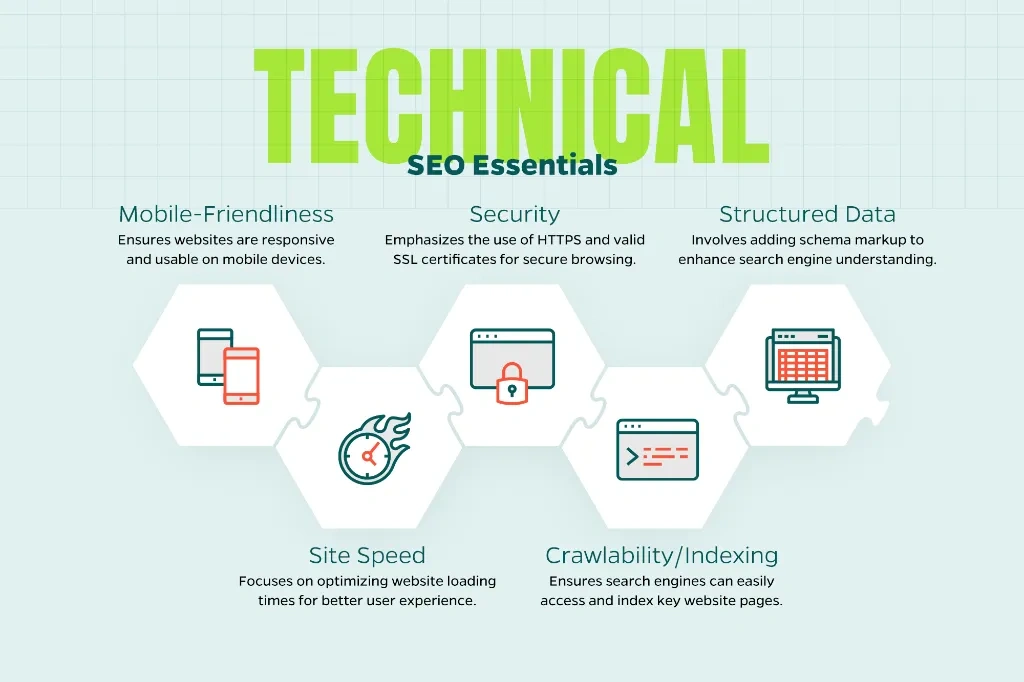
Schema markup is extra code that tells Google what type of content your page contains. Without it, Google reads your HTML and makes its best guess. With it, you’re explicitly stating “this is an article,” “this is a recipe,” or “this is a local business,” which makes your site eligible for richer search appearances like star ratings, FAQ dropdowns, or article carousels. Yoast adds schema markup automatically based on your content type settings, and you don’t write a single line of code to make it happen.
Yoast generates schema in JSON-LD format, which is Google’s preferred method. It builds a connected graph of structured data for each page rather than a single standalone tag. A standard blog post gets Article schema; a page you’ve set up to represent your organization gets Organization schema. Through the Schema tab in the Yoast meta box on each post, you can also adjust the content type per page if the default doesn’t fit. The automatic output covers the most common scenarios without any manual configuration. For advanced schema implementation notes, Yoast’s help center covers the options in detail.
Breadcrumbs are the navigational trail you’ve seen at the top of some pages: “Home > Blog > Post Title.” Yoast handles both the user-facing display and the schema output for breadcrumbs, though the visual display requires a small code addition to your theme to activate. The schema piece outputs automatically regardless of whether the visual breadcrumbs are showing. That schema helps Google understand your site’s content hierarchy and internal structure, which contributes to how it categorizes and connects your pages in its index.
Yoast SEO free vs. Premium: what you actually get
The free version of the Yoast plugin for WordPress covers a solid range of features: one focus keyphrase per post, SEO title and meta description editing, readability analysis, automatic XML sitemaps, schema markup, canonical URLs, breadcrumbs, and social preview controls. For a single-site blogger or small business owner who’s just getting started, the free version covers everything you need to build a properly optimized site from day one. There’s no artificial limitation that forces you to upgrade just to use the core functionality. You can grab the plugin directly from the WordPress plugin directory if you haven’t installed it yet: Yoast SEO on WordPress.org.
Yoast SEO Premium, priced at approximately $119 per year for one site at the time of writing; check Yoast’s pricing page for the current rate, adds a set of features primarily aimed at saving time and handling more complex workflows. The most useful Premium additions include:
- Up to five focus keyphrases per post instead of one
- Internal linking suggestions that recommend related posts while you write
- A redirect manager for handling broken URLs when you rename or delete pages
- AI-assisted SEO title and meta description generation
- Enhanced social preview controls
- Dedicated support and access to Yoast’s SEO Academy
The upgrade decision comes down to publishing volume and site complexity. If you publish one to three posts a week on a small site, the free version is sufficient. If you run a larger content operation, publish daily, or frequently restructure your site’s URLs, Premium often pays for itself through the redirect manager alone. The AI title generation can be a genuine time-saver for high-volume publishers, though smaller sites will likely find the free workflow more than adequate. For additional perspective on paid plugins and which premium tools are worth the investment, see our piece on best premium WordPress plugins worth investing in.
The 7 Yoast settings to configure right after installation
Installing Yoast and doing nothing else is one of the most common mistakes beginners make. The plugin runs in a default state that doesn’t know anything about your site until you tell it. Yoast’s first-time configuration wizard is the right starting point: it walks you through the most critical setup decisions and should be completed before you do anything else in the plugin. You’ll find it under Yoast SEO in your WordPress dashboard, labeled “First-time configuration.” For step-by-step help, consult Yoast’s first-time configuration guide.
Once you’ve opened the wizard, work through these seven settings in order:
- Run the SEO data optimization. This scans your existing content so Yoast can process and analyze it properly. Skip this step and Yoast’s analysis will be incomplete for everything you’ve already published.
- Set your site representation. Tell Yoast whether the site represents a person or an organization, then add your name, logo, or personal photo. This controls the structured data Yoast outputs sitewide and influences how your brand appears in Google’s Knowledge Graph.
- Add your social media profile URLs. Linking your social accounts in Yoast’s settings connects your site to those profiles in structured data, which strengthens your online entity and can support Knowledge Panel accuracy.
- Configure your homepage SEO title and meta description. Find this under Search Appearance in Yoast’s settings. Your homepage often gets the most visibility in search, so this is one of the highest-value meta descriptions you’ll write.
- Set content visibility for low-value pages. Turn off search indexing for tag archives, author pages, and any other content types that don’t serve your visitors. This keeps low-quality URLs out of Google’s index and focuses its crawl budget on your real content.
- Verify Google Search Console through Yoast. In the Webmaster Tools section of Yoast’s settings, you can add your Search Console verification code directly. Once verified, submit your sitemap URL inside Search Console to start getting crawl and performance data.
- Enable OpenGraph settings and set a default social share image. This controls how your pages look when shared on Facebook, LinkedIn, and other platforms. A default image ensures every page has a visual even if you haven’t set a featured image.
For most small sites, completing these seven steps typically takes under 30 minutes, though setup time varies depending on your site’s size and how familiar you are with WordPress. Either way, it puts your Yoast configuration ahead of the majority of WordPress sites that install the plugin and leave it on default settings permanently. The difference between a configured and unconfigured Yoast installation is meaningful, particularly for how search engines understand and represent your site.
Yoast vs. Rank Math and All in One SEO: a quick honest comparison
If you’ve spent any time in WordPress communities, you’ve heard debates about which SEO plugin is best. The honest answer is that Yoast, Rank Math, and All in One SEO all handle the core tasks competently: sitemaps, meta tags, schema markup, and readability or content analysis. The differences between them are more about workflow, interface, and which features each version unlocks for free versus paid.
Yoast is one of the longest-established WordPress SEO plugins and is broadly compatible with themes and page builders, with a setup process that most beginners find straightforward. Rank Math bundles more advanced features into its free tier, including multiple focus keywords and schema types that Yoast reserves for Premium. All in One SEO tends to be a popular choice for WooCommerce sites because of its ecommerce-specific features. None of these is objectively the “winner” for every situation; the right plugin depends on your site type, your comfort level with settings, and your budget.
What’s worth recognizing is that switching plugins mid-site carries some migration complexity, so it’s worth choosing deliberately rather than installing and reinstalling based on blog recommendations. AISEO Round Table has a full side-by-side comparison of Yoast, Rank Math, and All in One SEO, with screenshots and a recommendation framework organized by site type, so if you want to go deeper on the decision before committing, that guide is the right next stop.
What Yoast SEO does for your WordPress site, in plain terms
So what does Yoast SEO do for your WordPress site, exactly? It covers three core areas. First, it gives search engines the technical signals they need to crawl and understand your content, through sitemaps, schema, and canonical tags. Second, it puts your content presentation under your control through SEO titles, meta descriptions, and structured data. Beyond those technical foundations, it also coaches your writing through readability analysis so your content is easier for real users to engage with.
None of that replaces the work of creating genuinely useful content, building topical authority, or earning links from credible sources. Yoast lays the foundation so that work actually registers with search engines the way it should. A poorly configured site can undermine good content; a well-configured one gives every piece of content its best chance.
Start with the free version and complete the seven setup steps outlined above. Build your publishing habits around the focus keyphrase workflow. When your site grows to the point where managing redirects, internal links, and multiple keyphrases per post becomes a real time drain, that’s when Premium earns its price.
For your next step, head to AISEO Round Table’s full Yoast setup guide for a click-by-click walkthrough with screenshots, or check the plugin comparison if you’re still deciding which WordPress SEO plugin fits your workflow. Either way, the most important move is completing that first-time configuration today rather than leaving Yoast running on defaults while your site misses easy SEO wins.