
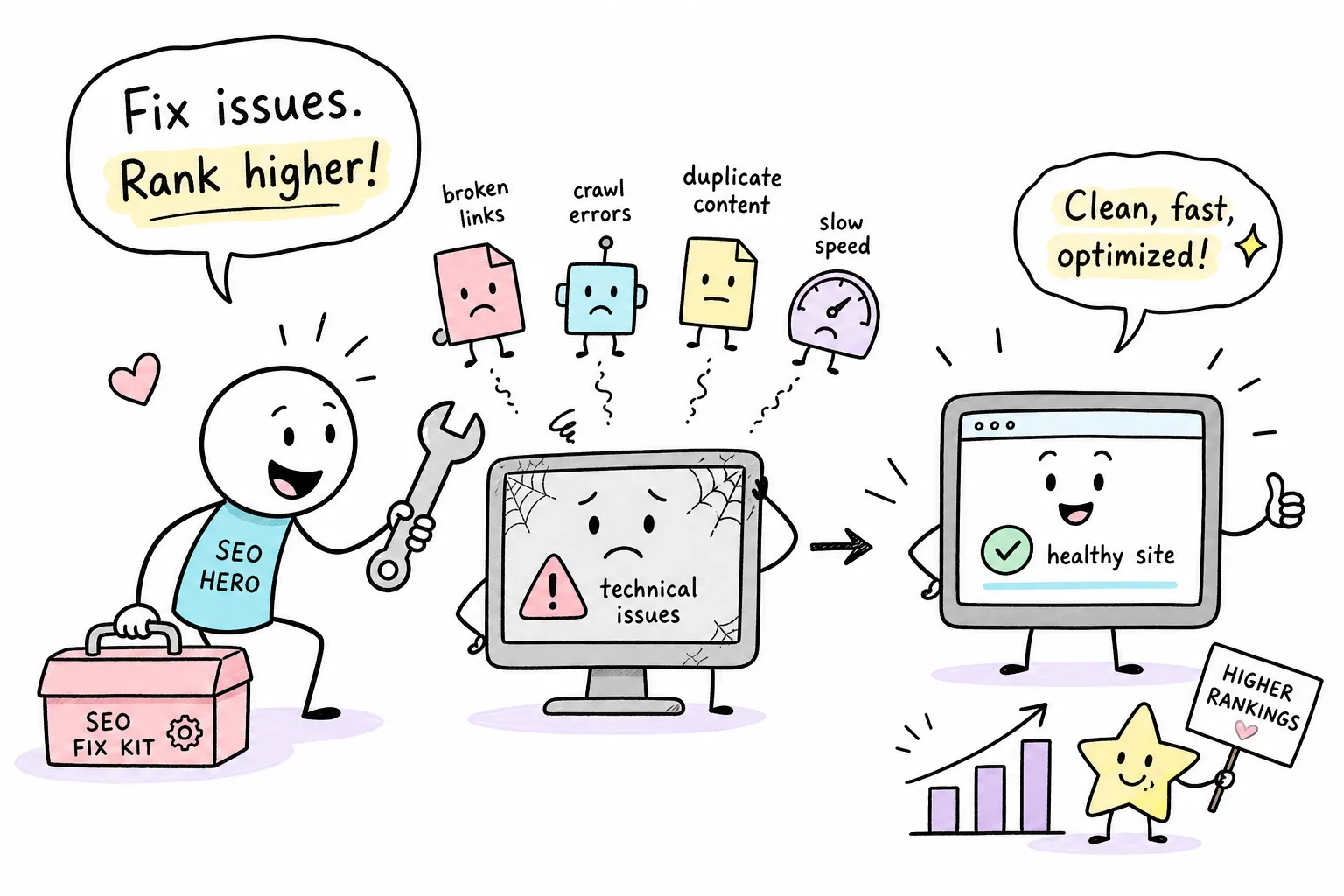
You’ve published great content, built a few backlinks, and done everything the SEO guides tell you to do. But your rankings are stuck, or worse, they’ve dropped for no obvious reason. The problem is usually hiding underneath your site, in the technical layer that search engines read before they ever evaluate your content. If you’ve been asking yourself how do I fix technical SEO issues on my website, the answer starts with a structured technical SEO audit and the five high-impact checks in this guide.
Technical SEO issues are the most common cause of ranking problems that don’t have an obvious explanation. A single misconfigured robots.txt file, an accidental noindex tag left over from a theme update, or a sitemap full of dead URLs can quietly block Google from reaching your best pages. The good news: you don’t need to be a developer or hire an agency to fix most of these problems.
This guide covers five high-impact problem areas: crawl errors, sitemap issues, duplicate content, slow page speed, and broken links. Free tools handle the diagnosis, and most fixes apply directly from your CMS settings panel. Work through each section in order, verify each fix before moving on, and your site’s technical foundation will be stronger than most of your competitors’.
1. The right tools to diagnose your site’s technical health
Fixing technical problems starts with finding them, and the right tools cut that process from hours to minutes. Google Search Console is the single best free starting point for any site owner (see How to Use Google Search Console for SEO, AISEO Round Table). It shows you exactly which pages Google can’t access, what’s been excluded from the index, and where your Core Web Vitals are failing across your entire site.
How to read the Pages (Coverage) report in Search Console
The Pages report (previously called the Coverage report) groups your URLs into four states: indexed, not indexed, excluded, and error. Focus first on “Crawled but not indexed” and “Excluded by noindex tag.” The first means Google found the page but decided not to include it in search results, often because the content is thin or the page has competing signals. The second means something is actively telling Google to ignore that page, which is sometimes intentional and sometimes a mistake left behind by a plugin or theme change.
What the Core Web Vitals report tells you upfront
The Core Web Vitals section in Search Console groups failing pages by template type rather than individual URLs. If your blog post template has a slow Largest Contentful Paint, you’ll see all affected posts flagged together rather than having to test them one by one. This pattern-based view is a much faster starting point than manually testing random pages, and it tells you where to focus your speed fixes for the biggest impact. Learn more about the metrics Google uses for Core Web Vitals on the official Core Web Vitals page.
When a crawler tool adds value beyond Search Console
Search Console shows Google’s perspective, which is valuable but incomplete. It won’t catch every broken internal link, redirect chain, or duplicate title tag across your site. A crawler like Screaming Frog (free up to 500 URLs) fills those gaps by crawling your site the way a search engine does and exporting every issue with the exact source page. At AISEO Round Table, we regularly review affordable audit tools that pair well with Search Console for site owners who want deeper diagnostics without paying agency-level prices (see our Technical SEO Guides, Fixes & Website Optimization collection).
2. How do I fix technical SEO issues on my website, crawlability and robots.txt
Crawl errors are the highest-priority fix on this list. If Google can’t access a page, it doesn’t matter how well-written the content is or how many backlinks point to it. The two most common causes are a misconfigured robots.txt file and accidental noindex tags, and both can be identified and resolved directly inside Search Console without touching a line of code.
Checking your robots.txt file for accidental blocks
Your robots.txt file sits at yourdomain.com/robots.txt and tells crawlers which pages they’re allowed to access. It controls crawl access, not indexing, so blocking a page in robots.txt won’t remove it from Google’s index if it’s already there. To check whether a specific page is being blocked, open Search Console, go to URL Inspection, paste the URL, and look at the “Coverage” section. If it says “Blocked by robots.txt,” you’ll know the exact cause and can open your robots file, find the blocking rule, and either remove it or make it more specific. For an authoritative explanation of common robots.txt pitfalls and invalid rules, see the Chrome Developers guide to invalid robots.txt.
Removing noindex tags from pages that should rank
A noindex directive tells Google not to include a page in search results. It lives either as a meta tag in the page HTML or as an HTTP response header. These tags most commonly end up on the wrong pages after a theme switch, a plugin update, or a staging site configuration that got pushed to production. In Search Console, use URL Inspection on any page with unexpectedly low visibility. If it shows “Excluded by ‘noindex’ tag,” the fix is simple: in WordPress, open the page in your editor, go to the Yoast SEO or Rank Math settings, and toggle the indexability setting back to “on.” In Shopify, the same control lives in your theme preferences or page settings.
Requesting re-crawling after you make fixes
After removing a block or a noindex tag, don’t wait for Google to find the change on its own. In Search Console’s URL Inspection tool, click “Request Indexing” after confirming the live URL looks correct. Then monitor the Pages report over the next few days. Once Google processes the change, the page moves from the “Excluded” category into the “Indexed” category, which confirms the fix worked.
3. Clean up your XML sitemap so search engines find your content
Your XML sitemap acts as a roadmap that tells search engines which pages exist and which ones matter most. A missing or broken sitemap won’t destroy your rankings, but a clean, accurate sitemap speeds up content discovery and helps isolated pages get found faster. Sitemap problems are especially common after site migrations or CMS updates, and they tend to multiply when pages get added manually outside the CMS workflow.
What belongs in your sitemap (and what to remove)
Your sitemap should only contain canonical, indexable URLs. Pages blocked by robots.txt, pages marked with noindex, redirect URLs, and thin or low-quality pages all need to come out. If a page doesn’t belong in Google’s index, it doesn’t belong in your sitemap. Most SEO plugins for WordPress, including Yoast and Rank Math, handle this automatically by excluding noindexed pages from the generated sitemap. It’s still worth a manual check after any major site change.
How to submit and monitor your sitemap in Google Search Console
In Search Console, go to the Sitemaps section in the left sidebar. Enter your sitemap URL (usually yourdomain.com/sitemap.xml) in the “Add a new sitemap” field and click Submit. A “Success” status means Google fetched the file without errors. If you see processing errors, they’ll indicate which URLs are causing problems, such as URLs that redirect or return errors. After fixing sitemap issues, resubmit the updated file. That prompt tells Google to recrawl your site structure sooner than it would on its own schedule. For a clear walkthrough on how to create and submit an XML sitemap, Seer Interactive has a practical guide.
4. Duplicate content and canonical tags: a plain-English fix
Duplicate content is a quieter problem than a 404 error, but it causes real ranking damage. When the same content exists on multiple URLs, Google has to pick a version to rank. It often picks the wrong one, or splits ranking signals between both, meaning neither page performs as well as it should. Common causes include www vs. non-www versions of your site, HTTP and HTTPS copies, trailing slash variants, and URL parameters from filters or tracking codes.
How to spot duplicate URLs without a paid tool
The Search Console Pages report flags duplicate URL issues under two specific categories: “Alternate page with proper canonical tag” and “Duplicate without user-selected canonical.” Both are your first signal that duplicate URL variants exist and are affecting indexing. For a broader view, search site:yourdomain.com in Google. The results show every indexed version of your site, including any unexpected duplicates like HTTP versions, www variants, or parameter-based URLs that shouldn’t be indexed.
Setting a canonical tag through your CMS (no coding required)
A canonical tag tells Google which URL is the preferred version of a page. In WordPress with Yoast SEO, open the page editor, scroll to the Yoast SEO meta box, click the “Advanced” tab, and enter the full preferred URL in the “Canonical URL” field. Rank Math works the same way: open the page, go to the Rank Math SEO panel, find the Advanced tab, and enter the canonical URL. Make sure to use the complete absolute URL, including the protocol, and confirm each page has only one canonical tag pointing to one destination. For more context on the rel=’canonical’ element and how search engines use it, see Yoast’s guide to rel=’canonical’.
When a 301 redirect is a better solution than a canonical
If the duplicate URL has no reason to stay live, a 301 redirect is cleaner than a canonical tag. A redirect sends both users and crawlers directly to the correct page in one step, removes the duplicate from circulation entirely, and consolidates any link equity without ambiguity. Use redirects for old URLs, HTTP versions of pages now on HTTPS, moved pages, and any URL variant that serves no purpose as a live destination. Most CMS platforms have a built-in redirect manager or a free plugin that handles this without code.
5. Speed up your site and fix Core Web Vitals failures
Site speed affects rankings, but it also directly affects whether visitors stay on your pages long enough to convert. Google measures three specific signals: LCP (how fast the main content loads), INP (how responsive the page feels to interaction), and CLS (how much the layout shifts as the page loads). The biggest speed gains on most sites come from a small number of high-impact fixes, and you don’t need a developer for most of them.
Start with images: the fastest win for most sites
Oversized images are the most common cause of slow LCP scores. Before uploading any image, compress it and convert it to WebP format, which loads faster than JPEG or PNG at the same visual quality. Set explicit width and height attributes on every image so the browser reserves layout space and prevents the page from shifting as images load. Most importantly, never apply lazy-loading to your hero image, the main above-the-fold image. Lazy-loading tells the browser to delay loading that image, which directly slows your LCP score. WordPress users can handle most of this with an image optimization plugin; Shopify stores can use built-in image processing or a third-party app.
Enable caching and address slow server response
Page caching stores a ready-made version of your page so the server doesn’t have to rebuild it from scratch on every visit. For most sites, enabling caching is the single highest-impact server-side change you can make. On WordPress, a caching plugin handles this configuration without any code changes. On managed hosting platforms and Shopify, caching is often enabled by default. If PageSpeed Insights flags a high Time to First Byte (TTFB), aim for under 800 milliseconds. Anything higher suggests the server is the bottleneck, and caching or a hosting upgrade is the right fix before spending more time on frontend optimizations.
Testing your results after each change
Use PageSpeed Insights (free, no account required) to test your pages before and after each change. Don’t only test the homepage. Most sites have different speed profiles for blog posts, product pages, and category pages, so test a representative URL from each template type. Run the test, record the scores, make one change at a time, and retest. That approach tells you exactly which fix moved the needle rather than guessing after changing multiple things at once.
6. Broken links: how to find them and stop them from hurting your rankings
Broken links send users and crawlers to dead ends. Internal broken links are the more damaging of the two for technical SEO because they interrupt crawl paths through your own site and create poor user experiences on pages you control. A small number of broken external links won’t tank your rankings, but a pattern of internal 404 errors signals to Google that your site is poorly maintained.
Running a quick internal link audit
In Search Console, the “Not found (404)” category inside the Pages report shows which URLs are returning errors and, crucially, which pages are linking to them. That second piece of information tells you exactly where to go to fix the link. For a more complete picture, Screaming Frog’s free version crawls up to 500 URLs and exports every broken link alongside its source page, making it easy to locate each issue, open the source page, and fix it directly. You can also run an automated scan with tools like BrokenLinkCheck for a quick external perspective.
Fixing 404 errors: redirect, restore, or remove
Every broken link has one of three right answers. If the page was moved or renamed, set up a 301 redirect from the old URL to the new one. Most CMS platforms have a redirect manager built in, and if yours doesn’t, a free plugin handles it without code. If the page was accidentally deleted and should still exist, restore it. If the content is genuinely gone and won’t be replaced, update every internal link pointing to that URL so it points to a relevant live page instead. Don’t just delete the link and leave a gap in your navigation, replace it with something useful.
Your technical SEO baseline is closer than you think
So, how do you fix technical SEO issues on your website? You start with the right tools, work through each problem area methodically, and verify every fix before moving on. The five areas covered here, crawl errors, sitemap gaps, duplicate content, slow page speed, and broken links, account for the majority of preventable ranking losses on small and mid-sized sites. Google Search Console is free, accurate, and built exactly for this kind of diagnosis.
Don’t try to fix everything at once. One confirmed fix is worth more than five unverified changes running simultaneously, because you won’t know which one actually worked. Run through this Technical SEO Checklist for Beginners, AISEO Round Table for site owners at least once a quarter, and request indexing in Search Console after each batch of changes so Google picks them up quickly.
For readers who want to go deeper, AISEO Round Table publishes regular guides on affordable audit tools, keyword research workflows, and on-page optimization strategies for site owners who want real results without an agency invoice. Bookmark this guide and come back to it every quarter, your technical foundation will stay ahead of most of the competition.